Compliance Calendar for Multiple LLCs: Free Template + Why Spreadsheets Fall Behind
A free compliance calendar template for tracking filings across multiple LLCs, plus how to set it up and when a spreadsheet stops being enough.
For business owners By Nathaniel Holzmann Last reviewed 5 min read
A compliance calendar for multiple LLCs answers one question for every obligation: what is due, for which entity, in which state, and by when? Add who is responsible and what has already been done, and you have a system that keeps recurring filings from slipping.
Download the free template (Excel, no signup)
What belongs on a compliance calendar for multiple entities
Depending on the state and on how each entity is taxed, an LLC’s recurring obligations can include:
- Annual or biennial reports filed with the state where it was formed
- Franchise or annual taxes in states that charge them
- Registered agent renewals
- State and federal tax returns
- Business licenses and permits
- Filings in every other state where it’s registered, since an LLC registered in several states can have obligations in each
Multiply that by every entity you own and the list grows fast. A compliance calendar puts all of it in one place.
The fields every row needs
| Field | Why it matters |
|---|---|
| Entity | Which LLC owes the filing |
| Jurisdiction | The state (or federal) it’s filed with |
| Filing / obligation | What is due, such as an annual report or franchise tax |
| Next due date | When it’s due |
| Status | Not started, In progress, Submitted or Filed |
| Owner | Who is responsible |
| Official source | The link you took the date from, so anyone can re-check it |
The last field matters most. Due dates and fees vary by state and change over time, so copy them from the state’s official page and save the link. That’s why the template has no prefilled deadlines: a stale date is worse than a blank cell.
Set up the template in five steps
- List your entities on the Entities tab, one row each. Delete the example rows first.
- Add a row for every obligation on the Filings tab: each entity, in each state where it’s registered.
- Copy the due date and fee from the state’s official page, and paste the page’s link into the Official source column.
- Keep Status current as you work: Not started, In progress, Submitted, Filed.
- When a filing is complete, mark it Filed and add a row for the next period. Keeping the old row preserves your history.
What the colors mean
The due date and the Deadline column change color for each row, and every color also has a text label:
- Overdue: the due date has passed and the filing isn’t marked Filed
- Due soon: due within 30 days (you can change the window in the yellow cell on the Filings tab)
- Upcoming: due later than that
- Filed: complete
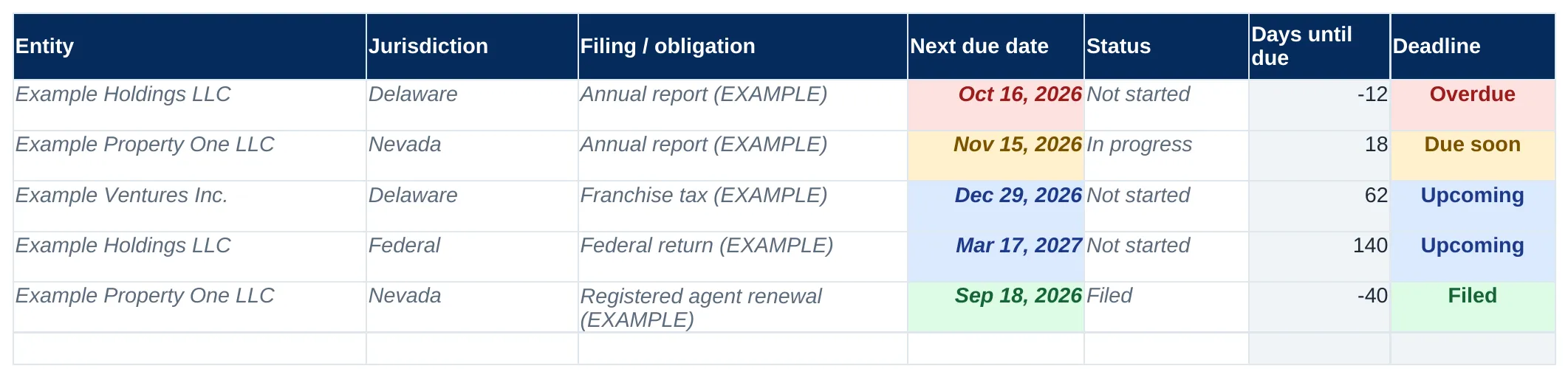
Example rows from the template. The colors update automatically as dates approach.
A five-minute routine
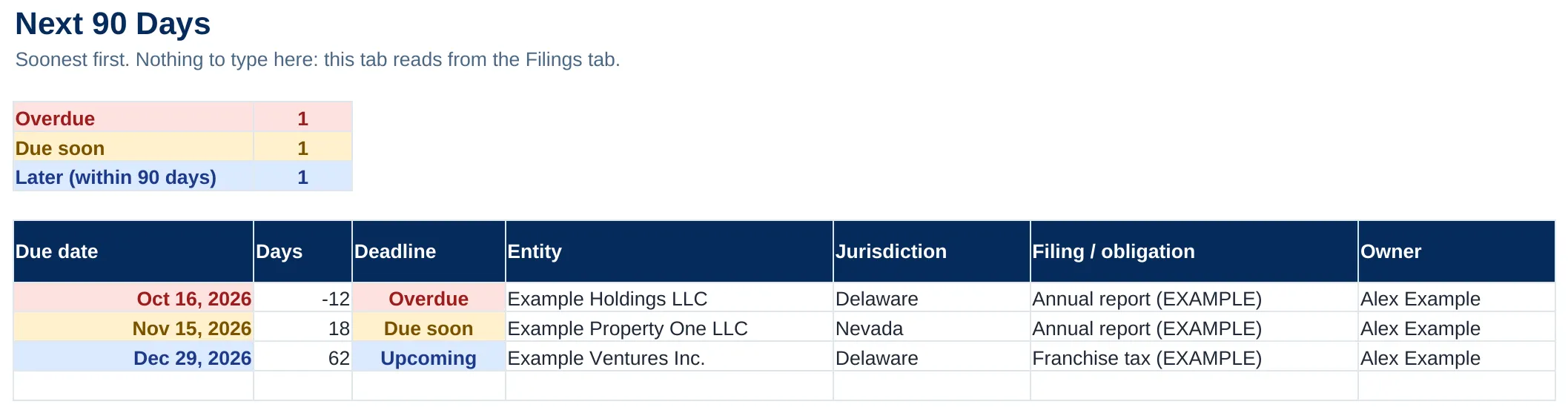
Once a week, or at the start of each month, open the Next 90 Days tab. It lists everything overdue plus everything due in the next 90 days, soonest first, and it reads from the Filings tab, so there’s nothing to type. For each item, confirm who owns it, update its status, and once it’s filed, add the next period’s row.
Where a spreadsheet falls behind
A spreadsheet is a good place to start. It struggles with five things:
- Due dates don’t roll forward. Every filing’s next date is retyped each period. Miss one row and it quietly goes stale.
- History gets overwritten. Change a due date to next year’s and last year’s filing disappears, unless you add a row.
- Ownership ends up in a text cell. Who owns each LLC, and what each holding company owns through other entities, becomes a note.
- Documents live somewhere else. The operating agreement and the filing receipt are in different places.
- Sharing means copies. Your accountant’s copy drifts from yours the moment either of you edits it.
You’re probably ready to move on if you retype the same dates every year, you’ve had a near miss, more than one person edits the file, or you need to see ownership and compliance together.
Where Equipath fits
Equipath is entity management software built for the parts a spreadsheet can’t do:
- Filing rules build the calendar. You set a rule once, covering how often the filing recurs and how its due date is calculated. Equipath creates the current period’s filing, and when you mark it filed, it calculates the next due date and creates the next period’s filing.
- Status updates itself. A filing shows as Due Soon automatically in the 30 days before its due date, and as Overdue automatically once the date passes.
- One view across every entity. The compliance calendar shows filings across all your entities and jurisdictions, in calendar or table view, and the table filters by status, jurisdiction, registration type and year.
- Ownership too. Map who owns what, including through holding companies. See how to track ownership across multiple LLCs.
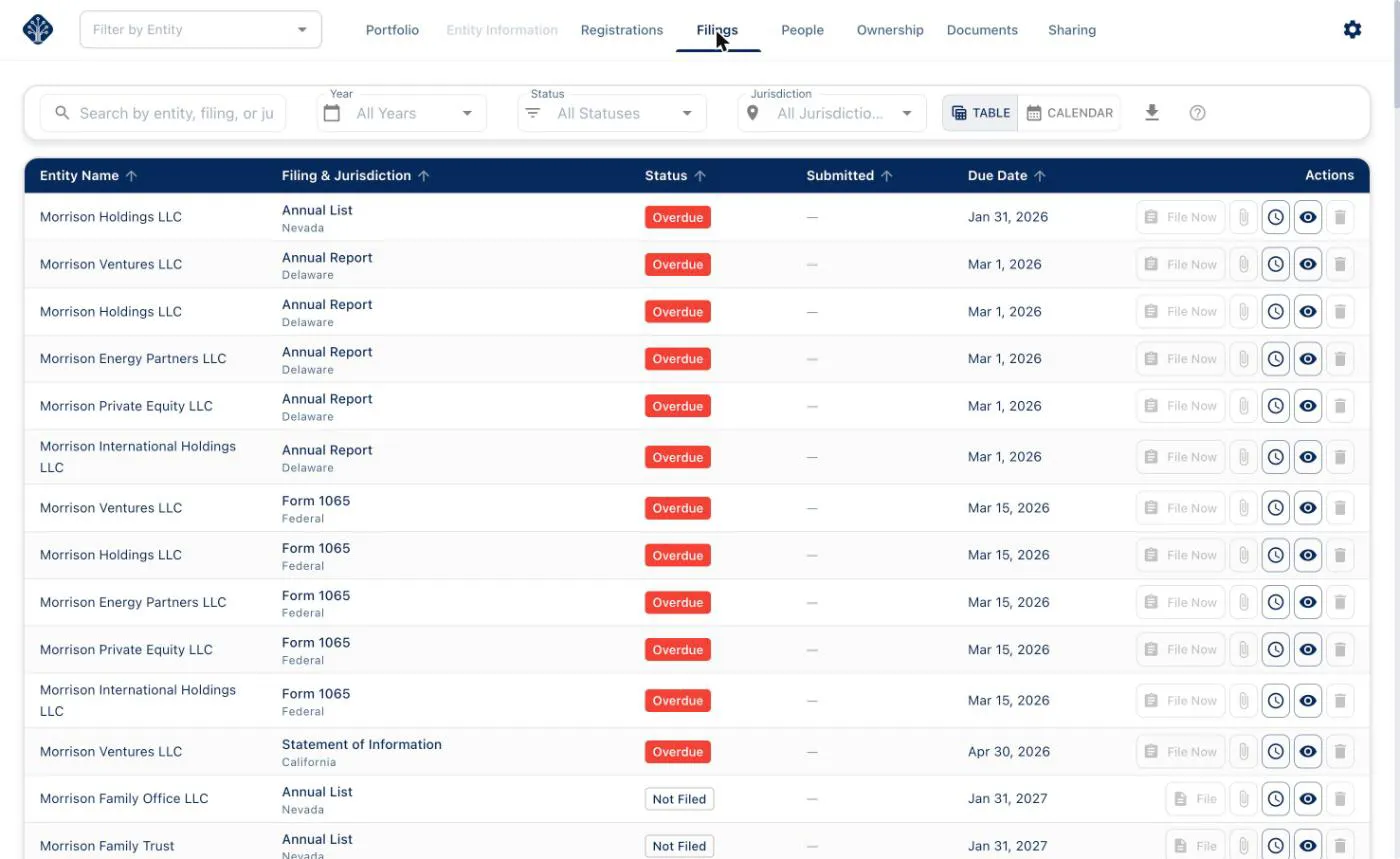
Sample data. The entities, filings and due dates shown are illustrative.
Core features, including the compliance calendar, filings and registrations, and ownership mapping, are free. To see how filing rules work, read Setting up filing rules for a registration.
Frequently asked questions
What should a compliance calendar include? For each entity, every recurring filing with its jurisdiction, due date, status, owner, and the official source for the date.
How often should I review it? Weekly or monthly, using the Next 90 Days view, and whenever a filing’s status changes.
Why doesn’t the template include state deadlines? Due dates and fees vary by state and change, and only the state can confirm yours. An out-of-date prefilled date is worse than a blank one.
Does the template work in Google Sheets? It’s built in Excel with standard formulas, so it should also open in Google Sheets or Numbers. If you import it, check that the drop-downs and colors came through.
This article is general information, not legal, tax or accounting advice. Requirements vary by jurisdiction and change over time — confirm the details for your situation with a qualified professional.